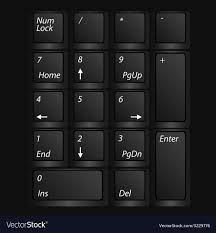
Imagine my frustration trying to quickly type my password (which includes a variety of numbers) just to find out the numlock was not turned on! It was happening every time I logged on in the morning, and shutting again when swapping between regular and admin accounts.
So what’s the big deal? It’s just an extra keystroke. It’s a convenience thing really, but there were a few other users griping about it as well. Hey, anything I can do to make their job easier and mine- I am all for. Keep tech working, and people are kept happy- amiright?
I began researching the issue, and naturally people pointed to the BIOS. This is a windows 10 environment, so it is UEFI now. You can get into it one of two ways. The first being holding down the shift key while rebooting, or you can go in through settings> update and security> recovery> advanced startup> restart now. Once the system reboots, select Troubleshoot> advanced options> UEFI firmware settings> and the PC will boot into BIOS. You can check out this link for pictures if you like.
**IMPORTANT!!**
Take great care when making any changes here, as you can do some serious damage to your computer.
Once you have entered the BIOS, you will see this screen:
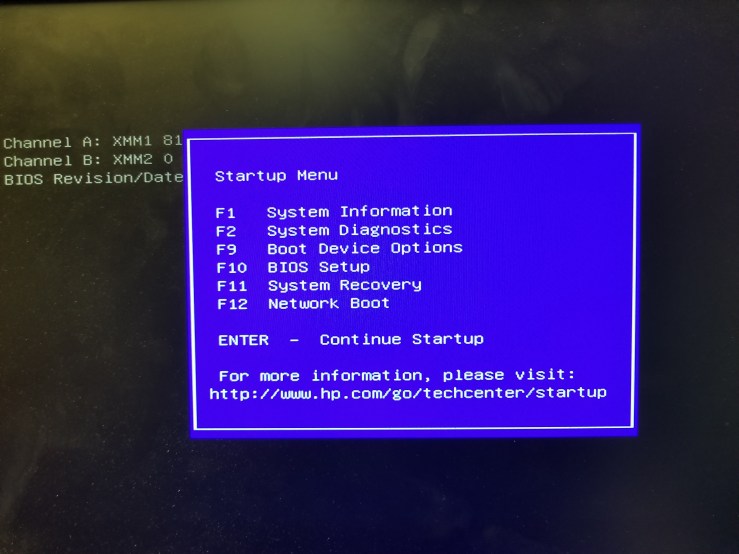
Select F10 here, or whatever the key is on your system.
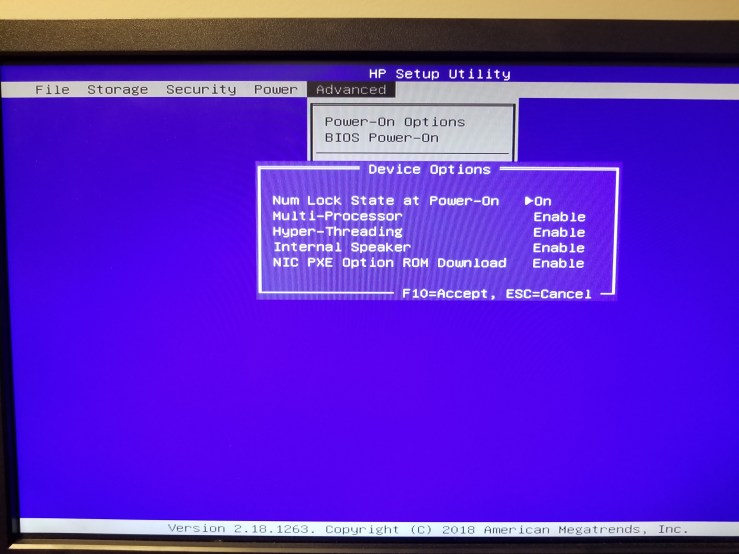
next, this will appear. Using your arrow keys, navigate to advanced, and then select device options. As you can see here, the num lock state at power on was already enabled. If for some reason it is not enabled for you, enable it, and hit F10 for accept.
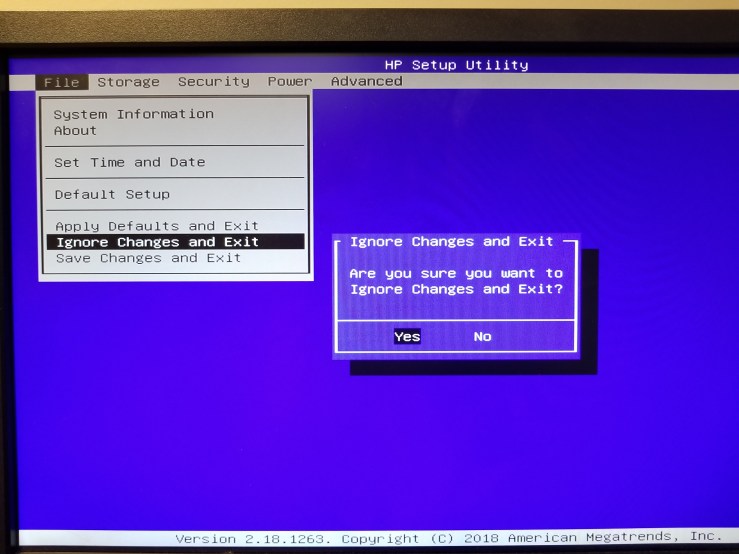
Next, we need to exit. Go back to the file menu. You have options here to save changes and exit, ignore and exit, or reset to default. Because I did not make any changes, I am choosing to ignore and exit.
As it turns out, this was not my issue. Where does that leave me? Where else but the registry. Something I was terrified to make changes in for awhile, tbh. But now, I figure to heck with it. Back it up and forge ahead. We’re going to find our answer one way or another!
You can edit the keyboard setting for the current user, but why do that when you can do it for all users and be done with it? Open up a run dialog and punch in regedit. Navigate to HKEY_USERS\.DEFAULT\Control Panel\Keyboard. the key we need to change is InitialKeyboardIndicators. the value you see here will likely be 2147483648. It needs to be changed to 2147483650.
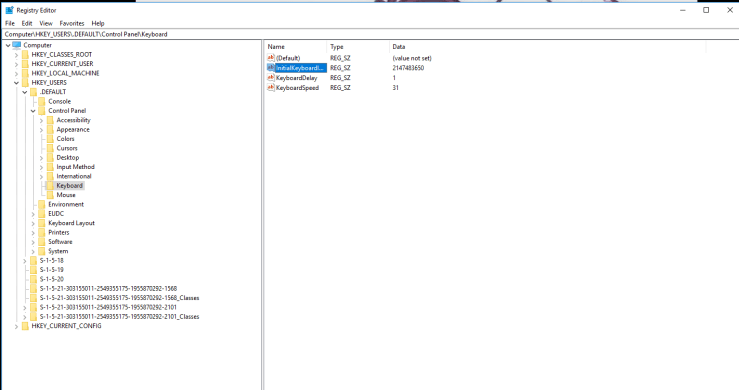
Once this is set, you should be good. Now, if you are just changing the current user only for some reason, navigate to Computer\HKEY_CURRENT_USER\Control Panel\Keyboard. The same InitialKeyboardIndicators will be found here, but this time the value is 2.
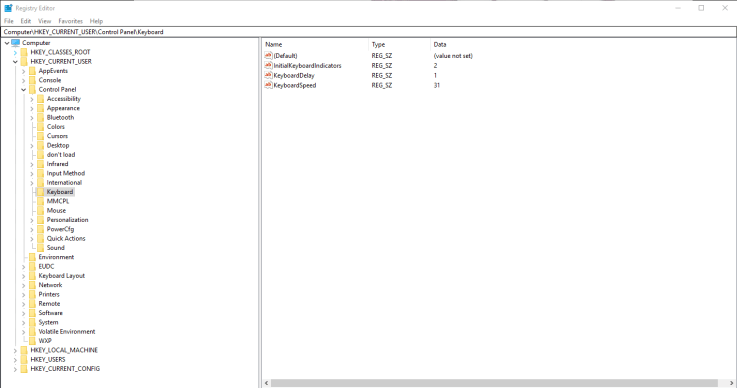
And there you have it! Note the registry can only be edited in Administrative mode. Pat yourself on the back, you’ve made yourself (and possible other users) happy campers! Have a coffee and march on!
 Adventures in tech support