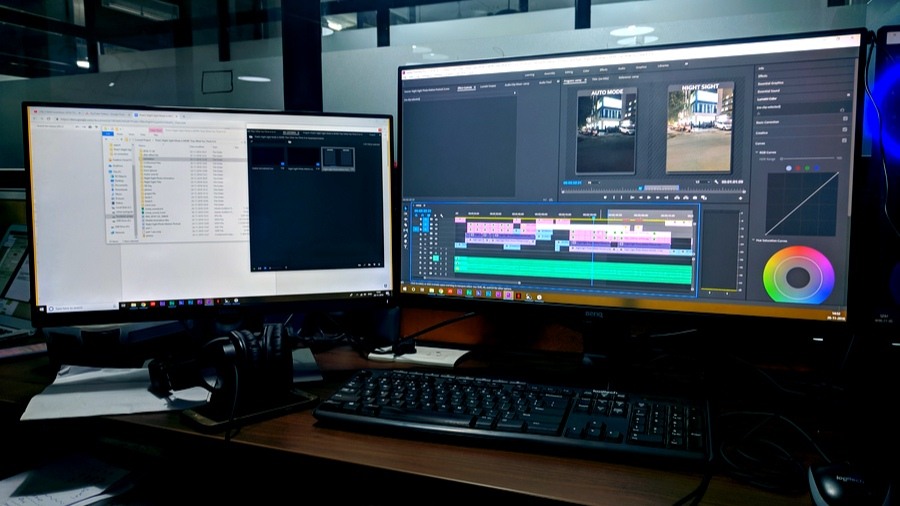
I had two users come to me with an interesting issue. Every time they would go to lunch, or leave their desks for a period of time- they would come back and their windows that were open would shift to the other screen or resize. I had others report the issue sometime later, but this one had me stumped for a bit, and the fix is… well, less than ideal but so far it has been the only thing I could find to work.
When I began researching the issue, there were suggestions of downloading programs that served as placeholders for icons and windows. Naturally, in this environment- I am not going to do that simply because I do not place trust in such a program/executable. I am a firm believer in that there is almost always a way to fix things on your own, sometimes you just have to dig deep.
First thing I looked at was sleep settings. Both of these users were set to never sleep. I double checked the power plans on both. The more I read about the issue, the more people were pointing to display/graphics drivers. The machines themselves are HP G2 260 minis, with HP P223 monitors. One using VGA the other HDMI. I had a hard time believing this was a driver issue, but figured what the hell. May as well rule it out. I proceeded to uninstall and reinstall the drivers for monitors and the video card for the PC. Neither made a difference in the issue. I had also attempted swapping cords, just in case, and of course that was not the issue either.
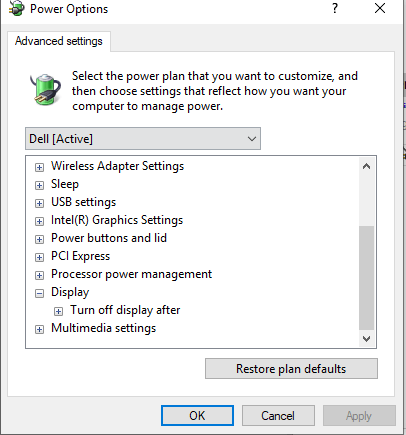
So, I start leaning back towards power and sleep settings again, figuring there HAS to be SOMETHING I am missing. After several coffees, and digging into multiple articles, I read about a power setting, “console lock display off timeout.” But, the crazy thing was, it was not listed as an option from within my control panel. It was supposed to be nested under display settings.
So, I had to figure out how to get this setting. I started digging for that answer, I figured it had to be a registry or command, something. I found my answer in the registry settings. To get the option of console lock display timeout, it must first be enabled in the registry.
As always, back up your registry first in case you make a mistake.
Computer\HKEY_LOCAL_MACHINE\SYSTEM\CurrentControlSet\Control\Power\PowerSettings\7516b95f-f776-4464-8c53-06167f40cc99\8EC4B3A5-6868-48c2-BE75-4F3044BE88A7
Once there, change the attributes value to 2.
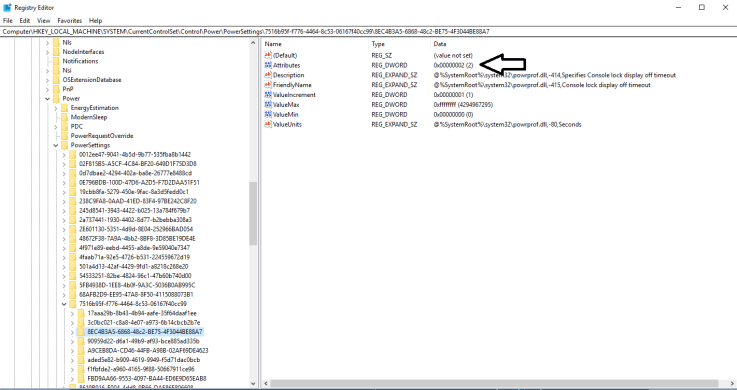
Now, the setting will appear in the power options within the control panel.
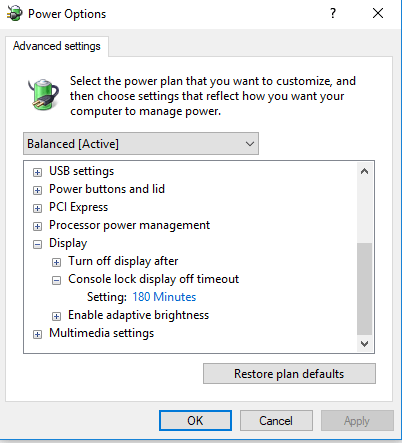
As you can see here, I changed it to 180 minutes. Perhaps a little bit over kill. So what this setting does is prevent the display from sleeping on the lock screen. Once I changed this for the two users, they did not experience further issues. This was a few months ago, and frankly I haven’t revisited the issue, since this worked. Since then I have had others report the same issue, so I built a package in PDQ deploy to automate the process. The first step is a powershell to enable the registry setting, and the second step is a command line to change the console lock setting in the power configurations.
Powershell to change the registry key:
Set-ItemProperty -Path HKLM:\SYSTEM\CurrentControlSet\Control\Power\PowerSettings\7516b95f-f776-4464-8c53-06167f40cc99\8EC4B3A5-6868-48c2-BE75-4F3044BE88A7 -Name Attributes -Value 2
Command line to change the power settings:
powercfg.exe /setacvalueindex SCHEME_CURRENT SUB_VIDEO VIDEOCONLOCK 10800
This made for easy deployment. I hope you found this useful!