At the company I currently work for, there are only a handful of users that are allowed to work remotely. They have been issued laptops but they are locked down. When I say locked down, I mean the user’s can’t even right click on the screen. The network admin insisted that the users only be allowed to connect to the VPN, a remote desktop session to their desktop, and display settings for dual monitors, and that’s it. This may seem a little paranoid, but given that it’s a financial institution, it’s understandable. Recently, I had to go back through and set up a few laptops. There wasn’t any previous documentation for this, and I didn’t exactly have a baseline- so I was working from scratch.
It is good to note that these instructions are specific to Windows 10, as it mentions the removal of Cortana and other default settings from Windows 10; however, can easily be modified for Windows 7.
First, it is a good idea to make a backup of the registry and make a restore point before starting. It is important to make any changes you want to the user account before locking down. For example change background picture or power settings etc. Although most of these changes can be done through group policy it may be easier adjusting these settings while logged in as the user to be locked down.
Locking down the majority of the user environment will be done from the Group Policy editor when logged in as the administrator.
Open the Group Policy editor by typing mmc in the search bar or in the run box and pressing enter. Click “File” from the menu and select “Add/Remove Snap in…”. Once the dialog box opens choose Group Policy Object from the Left pane and then click “Add” in the center. Click the browse button in the next dialog box and choose the users tab. Now click on the user or group you want affect. In this case we are choosing the mobileuser profile. Click “Finish” and then OK. From here any changes you make to this policy object will only affect Non administrators (or only the user or group you’ve chosen”.
If the interface is locked down, users will not have access to any drives however they can still access their desktop. To disable saving items to their desktop open the security properties of the user’s desktop and administrator ownership. Disable modification by the user and now they cannot save, modify or create anything to the desktop.
Prior to beginning the lock down, there are a few changes that must first be made directly to the mobile user account, while they are logged in. First, temporarily make the user an administrator.
Next, login as the mobile user- and proceed to the registry
Drill to here:
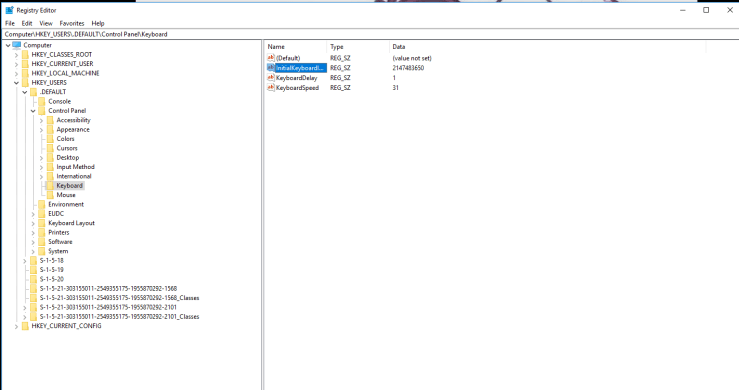
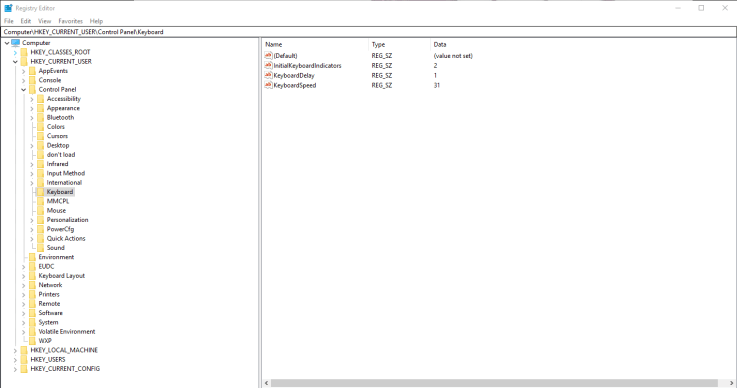
HKEY_CURRENT_USER\SOFTWARE\Microsoft\ Windows\CurrentVersion\Policies
- Right click on policy and click new – key- name it explorer (if it is not already available)
- Once this is done, right click on the newly named key and click new, DWORD
- It will ask for a name, insert NoStartMenuMorePrograms and change the value to 1. This will completely remove startup programs- however, the apps will be removed in another way through GPO.
The next thing we need to do is add shortcuts to the desktop for the display, VPN, and remote desktop connection to the user’s computer. For a full list of ms-settings commands, check out this article.
For the display shortcut
- Right click on the desktop and select new shortcut
- Insert ms-settings:display – click through next
For the VPN connection
- Right click on the desktop and select new shortcut
- Insert ms-settings: ms-settings:network-vpn
- Open the VPN shortcut, add new connection. Connect to whatever your VPN is
For RDP:
- Set-up the rdp profile – username (username)
- Under display settings, choose use all monitors
- Under local resources, turn off sound
- Test the connection and make sure it is a shortcut on the desktop
Other things to do prior to lockdown through GPO
- Remove Cortana
○ Right click taskbar, select Cortana, hide
- Go into the start menu, and get rid of all the bloatware, right click and uninstall what you can, and hide the rest
- Go into programs and uninstall everything that isn’t necessary- including office. The only things we want users doing is accessing the VPN and remote desktop.
Switch back to the admin account. Make your mobile user a standard one again. Proceed to the mmc snap-in and create a new console. Name it mobile user. Now we can proceed with the lockdown.
Part 1:
Select console, then go to file and hit new. Right click console and choose add/remove snapin. From the menu, select Group Policy Object, click add. In the following window, select the users tab and navigate to the desired user, in this case, mobile user. Follow through the prompts.
Next, our window will open with various GPO’s, and we can begin locking it down. We are going to start with the desktop.
1.) Select the administrative templates folder
- Desktop and then enable these policies
○ Remove computer icon on the desktop
○ Remove recycle bin from desktop
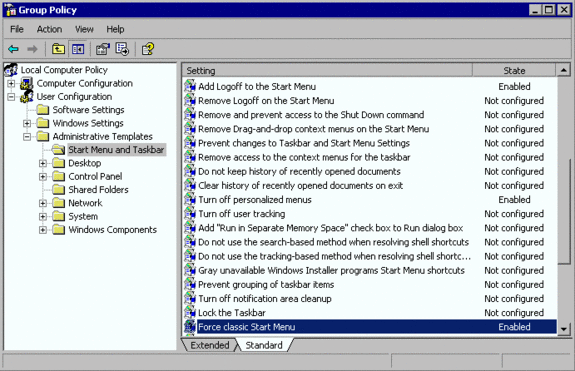
Next, we will lock down the start menu and taskbar settings. There are several items within this menu, some are disabled, and others enabled.
1.) From the administrative templates folder, navigate to Start Menu and Taskbar, and DISABLE the following features
- Add sear internet link to start menu
- Show quick launch on taskbar
- Show the app view automatically when user goes to start
- Add the run command to start menu
- Show windows store apps on taskbar
From the same location, ENABLE the following objects:
- Disable context menus from start menu
- Turn off personalized menus
- Lock the taskbar
- Remove balloon tips on start menu
- Prevent users from customizing start screen
- Remove common programs from start menu
- Remove favorites menu from start menu
- Remove search link from start menu
- Remove frequent programs list from start menu
- Remove game links from start menu
- Remove help menu from start menu
- Remove all programs list from start menu
- Remove pinned programs list from start menu
- Remove recent items from start menu
- Do not use search based method when resolving shell
- Do nut use tracking based method when resolving shell
- Remove run menu from start menu
- Remove default programs link from start menu
- Remove documents icon from start menu
- Remove music from start menu
- Do not search communications
- Remove search computer link
- Remove see more results / search everywhere link
- Do not search for files
- Do not search the internet
- Do not search programs and control panel items
- Remove programs on settings menu
- Prevent changes to taskbar and start menu settings
- Remove download links from start menu
- Remove homegroup link from start menu
- Remove recorded tv link from start menu
- Remove user’s folders from start menu
- Remove videos links from start menu
- Do not display any custom toolbars in the taskbar
- Remove access from the context menus for the taskbar
- Prevent users from uninstalling applications from start
- Remove links and access to windows update
- Do not allowing pinning store app to taskbar
- Do not allow pinning to jump lists
- Lock all taskbar settings
- Prevent users from adding or removing toolbars
- Prevent users from rearranging toolbars
- Do not allow taskbars on more than one display
- Prevent users from moving taskbars from one screen to another
- Prevent users from resizing taskbars
3.) Next, select the windows components folder, then go to file explorer, and enable the following rules:
- Remove file explorer’s default context menu
- Turn off Windows hotkeys
4.) Next, select administrative templates, then control panel and enable the following:
- Show only specified control panel items – click show, and enter these:
○ Microsoft.NetworkAndSharingCenter
○ Microsoft.Display
And that should do it. Crazy right? If you want someone locked down to the absolute max, this will be for you. Hope you enjoyed and found this interesting!