Why empathy matters in I.T.

Before I became an I.T. support specialist, I spent 12 plus years working in service industry roles. I held various positions from waitress to retail management. During those years, I learned how to help people, not just help them find things, or take their orders- but genuinely help through offering suggestions for projects, or going ‘the extra mile’ by ensuring they had what they needed, even if that meant traveling to obtain items or battling prescription insurance companies, or loading 80lb bags of cement into a pickup truck. I’ll be the first to admit my customer service game isn’t always on point, sometimes I have tough days too. But customer service is more than that. It’s listening, showing empathy, and talking to people like they’re humans.

I recently was hired to a University. I’ll be starting there in two weeks. It’s my dream job and I’m beyond excited. When I broke the news to my current employer, a lot of the staff were bummed out. I received this email earlier today from a woman I’ve helped out a few times with various tickets:

Crystal,

I missed you when you came through on yesterday. I was so sadden to hear you are leaving us! You have been such a great access for me. Never have you made me feel inadequate or stupid! Always helpful, patient and just a wonderful person to work with. I know your new opportunity is an exceptional one and you would be foolish not to accept the chance to work at the University. It is my prayer that the Good Lord will bless you! Hopefully, every once in a while you will come by and visit me/us.

Great Success!!!

I had others day similar to me, and while it warmed my heart, it made me sad to think that anyone would make her feel stupid because she doesn’t know how to do something. No one should ever feel that way. Just because technology comes easy for me, doesn’t mean it will for a teller. Everyone has things they’re good at, and not everyone is going to know what you think they should know, nor should they be expected to.

In this field, it is imperative to be patient, kind, and understanding. They call us for help, and that’s what we are here for. Talk to people, explain what you are doing and how you are working to come up with a solution to the problem. Ask them how their day is going. Ask probing questions without automatically assuming things. Be polite. Instead of asking, “well what were you doing?” Try “can you show me what was happening and maybe I can figure it out from there?”

Being friendly and approachable makes a big difference, people trust you more and are more receptive to what you have to say. Additionally, it creates a better environment all the way around. I know I like my job a lot better when people feel like they can talk to me.

I think it’s important to treat people with kindness in general. I hope if you’re reading this you’ll slow down to think about some of your interactions and try to meet people with empathy in mind. Especially if you’re in the service industry, I think you’ll find your job will get a heck of a lot better.

.NET 3.5 won’t install

Interesting instance came up at work a few months ago, and then again today, and boy am I glad I wrote down the fix. I remember the last time this happened, I could not find the exact error code fix online for some time. It threw an error code something to the affect of 0x8000 (of course I can’t find my screenshot!) There are several versions of that error code, and quite a few (with their fixes) are listed on a Microsoft article here.

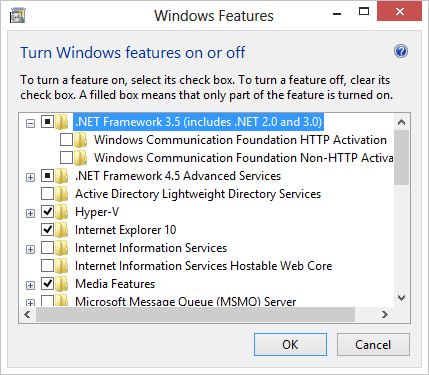
Typically speaking, you would just be able to activate .NET 3.5 through control panel> programs> programs and features > turn windows features on or off. Simply check the box next to .NET and  have it search automatically online for the updates. However this was where I ran into the issue, it would not auto install as it should. After thorough digging, it was found that WSUS was interfering with this. Here is the fix for that, open up a run command and go to regedit. Navigate to HKEY_LOCAL_MACHINE\SOFTWARE\Policies\Microsoft\Windows\WindowsUpdate\AU change the registry key “UseWUServer” to 0. This will temporarily bypass WSUS. You will need to have administrative privileges for this to work. 

Exit the Registry and restart the Windows Update Service in task manager, or reboot. Go back into the control panel and install the 3.5 .NET framework. Once it has been installed, go back to the same registry key and change the value back to one, and once again, restart the Windows update services within task manager. And voila! Success! Pat yourself on the back and grab a coffee! 🙂 

Password storage on premises

One of the things I was tasked with when I began this position was to find a solution for on premise password management. Why on prem when you can do a slick cloud based like Last Pass, you ask? Well… It’s a financial institution. Auditors and compliance officers do not agree with cloud based solutions. There are few exceptions with some software we use, but they are far and few between. What made this even more of a challenge was the company didn’t really want to shell out a significant expense for a paid version of something. So where did that land me? KeePass.

KeePass is free, fairly secure, and the configurations allow for enforceable rules through editing XML document. Login can be multifactor or single password. You can have Windows authentication, a token (via available plugins), certificate based login, master password, or a combination of these. Because we have users that switch desks at times, we went for the option of using a master password. The certificate based and Windows authentication are limited to the device itself. Though the database file can carry over with the user’s profile.

Here is the proposal I wrote for the company, highlighting some of the features of the product and includes links to additional information regarding the security of the product:
Password management and safety plays a key role in cyber security and safety. Employing the use of software that allows staff to securely store their information is of interest. We have been testing a product called Keepass, and believe that this may be a viable solution for the company. KeePass offers 256 bit AES encryption with enforced access by a master password to the vault, along with other potential multi-factor authentications including the use of domain user account and/or certificate based authentication. KeePass can be customized which is beneficial. Furthermore it is an on premise solution, putting the control in our hands, rather than relying on cloud based storage- as many password management sites are geared towards. Here is a small sampling of the features that have been enforced:

Master password min. Requirement is 16 characters
Master password must also be at least 20 bits in quality
Master password is set to expire every 90 days
Clipboard clears after 30 seconds
Limit to single instance of being open
Workstation (KeePass window) auto locks after 15 minutes
Auto-type to websites has been disabled
Invalid certificates are not accepted
Database auto saves upon any changes being made
Expired entries will prompt warning

The way these rules are enforced are through an XML enforced configuration file that affects each user upon the creation of their databases. Some options have been left open for the user to customize the basic look and feel of their windows and menus; however, any options relating to security or policy have been locked. Access to the enforced configuration file is strictly limited to the IT administrators, and KeePass will be accessed through a secure drive, with limited read/execute privileges to the users, while the enforced configurations remain hidden.

KeePass vulnerabilities are continually addressed, and the company makes that clear on the security page within their site. Vulnerabilities and actions taken may be viewed on their site here. The developers of KeePass remain active on SourceForge and have extensive documentation and help topics available. They continue to update the product, with the most recent being 01/09/19. More information can be found here.

KeePass underwent a thorough security audit by the European Commission’s Free and Open Source Software Auditing, and while there were minor problems within the code, no real security threats were found. I have attached a copy of the full PDF report for your viewing. keepass audit

KeePass has also received awards from German federal office for information security, along with awards from the French network and information security agency. The program also comes recommended from a number of online forums and websites such as PCMag, How to answer, and Krebs. You may view several of these articles and recommendations here.

We are investigating additional ways to secure the program. There are a few nuances such as the utilization of Windows Authentication. By adding this, it provides an additional layer of security through authenticating that it is the user logged on prior to opening the database; however, if the user (or even another user) attempts to open the file from another location, it will reject the composite key as invalid. Through probing, it was also discovered that modifying permissions to the user’s database file does not allow access. While KeePass can be cracked, it would take a rather large effort on the attacker’s part- including resolving the hash and employing a key logger. However, we have enforced the master key being entered on secure desktop in order to thwart keylogging. Information on breaching KeePass can be found here.

Overall, this program offers fairly robust security and should be considered an option for password management storage.

In order to create the enforced configurations, I went through a lot of trial and error adjusting settings within the program, and then copying them over to the enforced config file. This can be done in notepad++. The way I chose to do the deployment was to copy the program to the C drive for local users and modify permissions to the xml enforced config file. With that deployment, I also copied a how to file with screenshots to each user’s desktop as well. I am happy to say that it is a fairly intuitive program and most users adapted quickly. I would post that documentation here; but it has sensitive information in some of the screen captures.

Overall it has been a positive experience with this program, and it could be a potential solution for you as well. Hope you enjoyed this and were able to gain new knowledge. Have a great day! 🙂

What the heck happened to my icons?! *Updated*

This one is a riot and frankly had me stumped longer than I care to admit. I had a user call in saying their desktop icons had all turned white/blank.

It started with one user, then another, and then that number grew to six. The common denominator was that each of these users had been recently upgraded from Windows 7 pro to 10 pro. Which, BTW you can still do for FREE. (Disclaimer on that, I don’t know how long that upgrade link will be good for. Microsoft had announced it would be ending, but it clearly hasn’t. Also, make sure you update your chipset and video drivers afterwards. Dual monitors don’t like to work with the Windows 7 drivers. Dell just had a bunch of updates between December and February 2019)

I digress. Anyway, these people had all been updated at different points in the past few weeks, but the icon issue happened to them all in a 48 hour time frame. Also, it was affecting any user that logged onto the affected machine. Gotta be an update right? We attempted rolling back a cumulative update on Feb 11th for 1809, this did not work. Here are some of the other things I attempted that did not work; however, in different instances they make work for you:

  • Clear the icon cache. First- in file explorer, make sure you change the view to show hidden folders.
  • C:/users/%user%/appdata/local/ and find the IconCache.db. Permanently delete. Go into task manager (right click toolbar and select task manager) in processes towards the bottom, select file explorer- right click and restart the process.
  • If that doesn’t work you can attempt this: windows + r key and type ie4uinit.exe -show
  • You can try system file checker but that didn’t work for me either.

So where does that leave me thinking? Registry. It’s always the registry. After doing some Google Kung Fu, I found the culprit. I found another article that said Palo Alto Traps caused the change in the key, but I don’t buy it. If that had been the case, all of my users would have been affected. Anyway, here’s what you’ll need to do.

  • Open up run command, Windows key + R
  • Type in regedit
  • BACK UP YOUR REGISTRY FIRST!
  • Navigate to: HKEY_CLASSES_ROOT\lnkfile/shellex\IconHandler change the default to 00021401-0000-0000-C000-000000000046

Now, the original article I found this beautiful nugget of information in, recommended deleting and rebuilding the icon cache after this change, but it works fine without it. You will need to restart the file explorer process again afterwards, or reboot. Your choice. For mass deployment, we created a packaged in PDQ deploy (that’s what we use. I love it). Once I’m back at work Tuesday, I’ll grab the details of the package and post them here.

This was a maddening event, like I said it took me longer than I care to admit to figure out, but I did find the answer and I was pretty excited about it. Thanks for reading!

*Edit*

For mass deployment, export the registry file for that key. Our environment uses pdq deploy and here is the package details.

Step 1 install file, here insert the path to the exported registry file

Run the following command to merge the registry

Merge registry. Command line regedit.exe /s “name of exported reg file”

Next powershell to restart the file explorer for the change to take affect
Stop-Process -ProcessName explorer -Force

Welcome!

I’ve decided to create a blog about my work in tech support. In I.T. there is not a day that goes by without a new challenge or learning something new. I thought it would be good to start recording some of that knowledge and tricks I picked up. This will be primarily for educational purposes and I hope it can help others in tech as well. I’ll be posting stories here about tickets created and solutions I’ve found. I’ll also be posting some procedures I’ve developed for certain process.

Being that my posts will be involving tech support related items and offering solutions I have found, I have to make a disclaimer- if you attempt any of my solutions, I will not be held responsible for anything that goes wrong. Any good tech knows to make a backup first before proceeding with troubleshooting.

Anyway, I hope to make this fun for you, and hopefully help at some point as well. Thanks for visiting!!

-Crystal